Video Generator
Video Generator for Short-Form Clips
Take a clip into the Video Generator to frame it for your project, add visible text, and adjust its pacing. Use it for short title cards, fictional scenes, or design demos that need motion.
Verify through Discord to use the editor. The workspace shows any access requirements for your account.
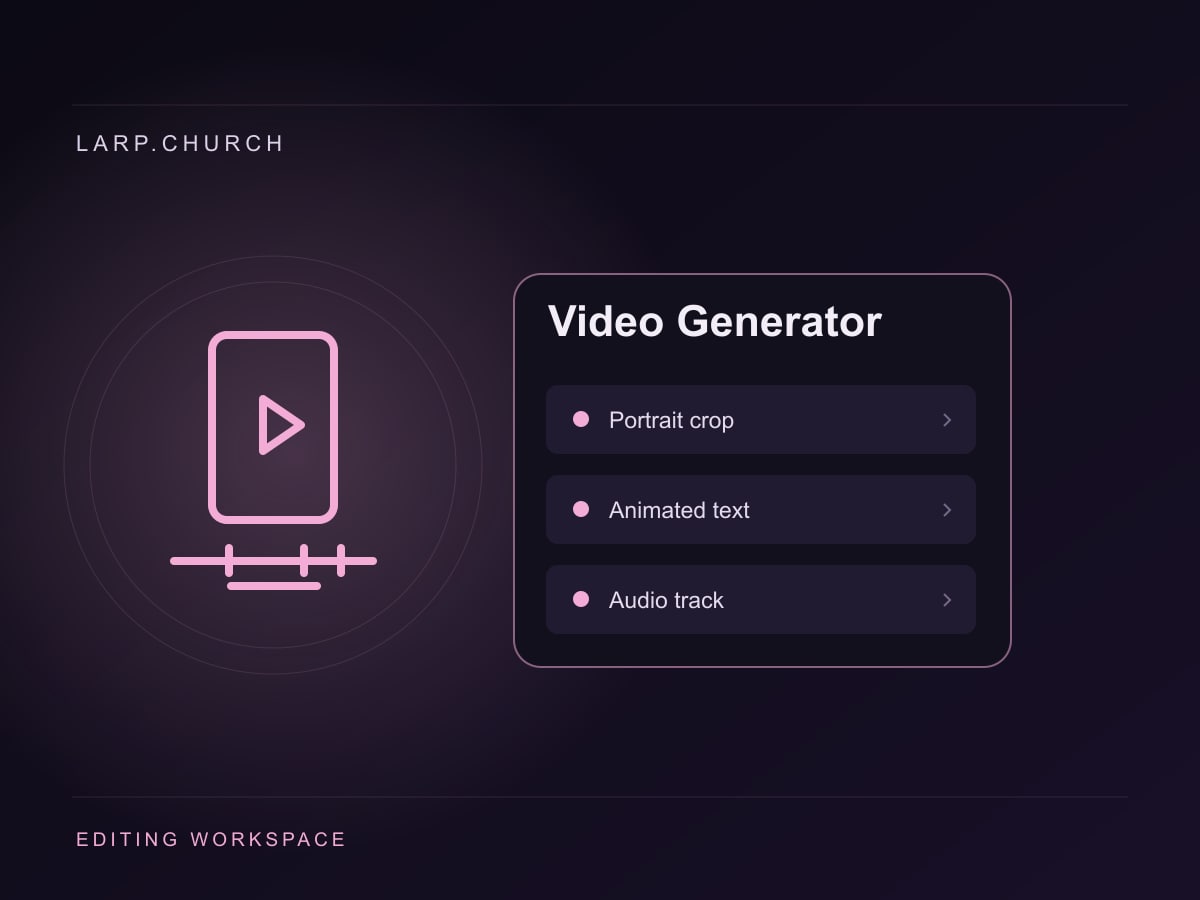
Short clip editing controls
Crop and framing
Set the crop for the screen you plan to share on and check what remains in view.
Text and animation
Place a text overlay, then preview how it moves and how long it stays visible.
Audio and finishing controls
Set the audio and review the finished clip before rendering it.
How to edit a short clip
- Open Video Generator and verify through Discord.
- Choose your clip and adjust its framing, text, and audio in the workspace.
- Review the preview at the size you plan to use, then export in the format the template supports.
Choose your crop first. On a portrait clip, leave a little room around titles so controls on the destination app won’t cover them.